
Kami Anak Malaysia

Bersama Berganding Bahu Kearah Membina Generasi Gemilang.

Merialisasikan Impian Untuk Semua

Bekerjasama Tanpa Diskriminasi

Adik-Adik kami Bimbing dan Sahabat Kami Pimpin

Mengamalkan Perkongsian dan Amalan Terbaik

10 Program Utama Untuk Semua

Program Yang Akan Mengubah Sikap dan Menambah Ilmu

Konsep Penglibatan Peserta dan Pembelajaran Aktif

Yang Berat Sama Di Pikul dan Ringin Sama Di Jinjing

Showing posts with label ICT-How to. Show all posts

Monday, October 15, 2012

Why your computer running slow? and how to know what process is running on your hard drive

Option : how to use other software to killing your process in computer

Your computer responds slowly as the process overloads the physical limitations of your drive. What are you to do?   How stop the process that is killing your drive.  There are two methods and tools that you can use to identify the process.


Method 1 :


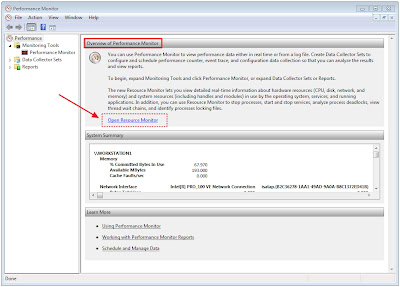
Step 1 : Click on the Start Button and key in perfmon.exe , press Enter.  The windows will be pop up.


Step 2 : On the overview screen click Open Resource Monitor, window will be pop up. 


Step 3 : Click on the Disk section. You can see a list of all processes and the files are writing or reading from your drives. 


Step 4 : Click on the Read, You can see sort all disk operations to identify which process and file is currently using the disk the most high


Method 2 :

Step 1 : Download process exploxer here


Step 2 :  Open folder and click Run


Step 3 : You want to killing the process and identify in your hard driver and see what the process with the higher numbers

NOTE : Make sure you does not delete Software from windows


No 23-1, Block A, No 2 Jalan Langkawi 53300 Setapak Kuala Lumpur 

Hotline:1800-88-7508

Friday, October 12, 2012

Create a System Repair/Recovery Disc


New in Windows 7 is the ability to create a system repair CD that will help you recover your computer from serious errors preventing windows from starting up.
If you have a Windows 7 installation disc, that doubles as a repair disc so you don’t need another. This article is only useful for users that have Windows 7 pre-installed and did not receive the installation media with their computer.

  • Creating the disc is very simple. Just click on the start button and type in recdisc.exe and press Enter.

  • Once started, put in a CD-R or CD-RW into your burner and click Start Burning
        

No 23-1, Block A, No 2 Jalan Langkawi 53300 Setapak Kuala Lumpur
Hotline:1800-88-7508

Thursday, October 11, 2012

How to burn ISO images to CDs or DVDs in Windows 7 without software

What is ISO
An ISO image (International Organization for Standardization) is an archive file (also known as a disk image) of an optical disc, composed of the data contents of every written sector of an optical disc, including the optical disc file system.[1] ISO images can be created from optical discs or from a collection of files by image creation software; images can be used to write optical discs. Software distributed on bootable discs is often available for download in ISO image format, and used to write a CD or DVD. ISO image files often have a file extension of .iso.

How to Burn to ISO
Just double-click the ISO image, choose the drive with the blank disc, click Burn and watch as your disc is created.


No 23-1, Block A, No 2 Jalan Langkawi 53300 Setapak Kuala Lumpur 
Hotline:1800-88-7508

Tuesday, October 9, 2012

How to Solve Site Security Certificate Expired in Browser

There were two cause for this:
1. If it's caused by bugs or hijackers. you can use software to solve it.
2. It can also caused by 'weak computer battery that has adjusted your computer time somewhere in the future.

Symptom: If the date and time is adjusted to the different zone (i.e to the future)

notes:
date & time : ok - cause by hijackers
date & time : changes - cause by bugs or;
date & time : changes - battery

Question: How to solve this ?
Answer: Adjust your time and date to the current date (as sample below)

SSL did not permit to enter https://gmail.com (ssl site)


Time has been adjusted by 'bugs' somewhere to the future


No 23-1, Block A, No 2 Jalan Langkawi 53300 Setapak Kuala Lumpur 
Hotline:1800-88-7508

Sunday, October 7, 2012

Kill Processes from Command Prompt

I'm sure you are familiar with the traditional way to kill or end a process in Windows using Task Manager.  This method is effective but not nearly as fun as killing a process in Command Prompt.  Additionally, killing processes in Command Prompt provides much more control and the ability to end multiple processes at once.

All of this is possible with the TaskKill command.First, let's cover the basics.  You can kill a process by the process ID (PID).

First,you open cmd (command prompt).Then get the root.

Next,you can get result like this:
Second,type tasklist,then Enter  ( C:\>tasklist )
Open up an Administrative level Command Prompt and run tasklist to see all of the running processes:
Third, aim the page or program's running that you want to close.
Lastly,type taskill/PID (PID no that you aim)/f      ( C:\>Taskkill/PID xxx/f )
The /f flag is kills the process forcefully.


No 23-1, Block A, No 2 Jalan Langkawi 53300 Setapak Kuala Lumpur 
Hotline:1800-88-7508


Open Command Prompt From Any Folder

Here is a quick time saver that I use all the time:
  •  Hold down the Shift key and right click on any folder in Windows 7 and select Open command window here.
  •  A command prompt will open with the current directory set automatically.


No 23-1, Block A, No 2 Jalan Langkawi 53300 Setapak Kuala Lumpur 

Hotline:1800-88-7508

Wednesday, October 3, 2012

How To Speed up Flip 3D

Every single Windows Vista/7 presentation and demo I have seen has always included the new Flip 3D, alt+tab replacement. This is a cool feature that really helps you switch between windows when you have a lot open but for some, it can be a choppy experience.  If you have a low end graphics card you may experience dropped frames resulting in a choppy animation experience while flipping through your windows.  One easy way to make Flip 3D perform much better is to limit the number of windows it draws on your screen.

Follow the steps below to speed up Flip 3D on your computer:
  • Click on the Start Button, key in regedit and hit Enter.

Navigate through HKEY_CURRENT_USER, Software, Microsoft, Windows and DWM.


Note: Full Path
DWM > Create a new DWORD and call it Max3DWindows.

Set the value of this to something between 4 and 9 depending on the performance of your card.

Note:Experiment with the values to find the best value for your hardware.

  • Restart the DWM interface by running net stop uxsms and net start uxsms at a administrative level command prompt.

net stop uxsms
net start uxsms
  • Alternatively, you can just reboot your computer.

No 23-1, Block A, No 2 Jalan Langkawi 53300 Setapak Kuala Lumpur
Hotline:1800-88-7508